

Apple Watch Transcription Apps (2026): How to Turn a Wrist Recording Into Text
LoroNote Team13 min
Table of contents
- Can an Apple Watch transcribe audio on its own?
- Four ways to transcribe an Apple Watch recording
- Option 1: Voice Memos, the free built-in route
- What about Live Rewind and Siri Recap?
- Options 2 and 3: Just Press Record and Whisper Memos
- Option 4: LoroNote — record on the watch, transcribe on your iPhone
- Which one should you use?
- Getting a cleaner transcript from a wrist recording
- Frequently Asked Questions
- Conclusion
- Official Resources
Quick answer: An Apple Watch can record audio, but with every app covered here the transcript is written somewhere else — on the paired iPhone or on a server. The free route is Apple’s own Voice Memos: record on the watch, let the recording sync, and open it on an iPhone 12 or later, where transcripts are available in ten languages. If your language is not one of the ten, or you need speaker labels, subtitles, or audio that stays on your own devices, a third-party app takes over from there. Apple’s newest watch features, Live Rewind and Siri Recap, are not transcription: Apple describes the first as a text snippet of the last 15 seconds and the second as “a brief, high-level summary, not a detailed record or transcript.”
This guide was written by the LoroNote team on November 5, 2026. Apple’s requirements come from Apple’s own documentation, and details about other apps come from their App Store listings and websites as they read on that date — all linked at the end. Where a vendor does not state something publicly, this guide says so rather than guessing.
Can an Apple Watch transcribe audio on its own?
Not in the sense most people mean. The watch has a microphone and room to store recordings, but turning a long recording into accurate text is heavy work, and every app in this guide hands that work to something bigger:
- Voice Memos syncs the recording to your other Apple devices. Apple documents transcripts as an iPhone feature — “available on iPhone 12 or later” — and its Apple Watch guide does not mention them at all.
- Just Press Record says watch recordings “automatically transfer to iPhone for transcription.”
- Whisper Memos says its app “uploads your recording and transcribes it automatically.”
- LoroNote syncs the recording to your iPhone and transcribes it there, on the device.
So the useful question is not which watch app transcribes. It is where your recording goes to become text — your own phone or someone else’s server — and what comes back.
One thing to rule out early: dictation is a different job. Dictation turns what you say into typed text in a message or a search field as you speak, and it keeps no recording. This guide is about the other job — capturing audio now and reading it later.
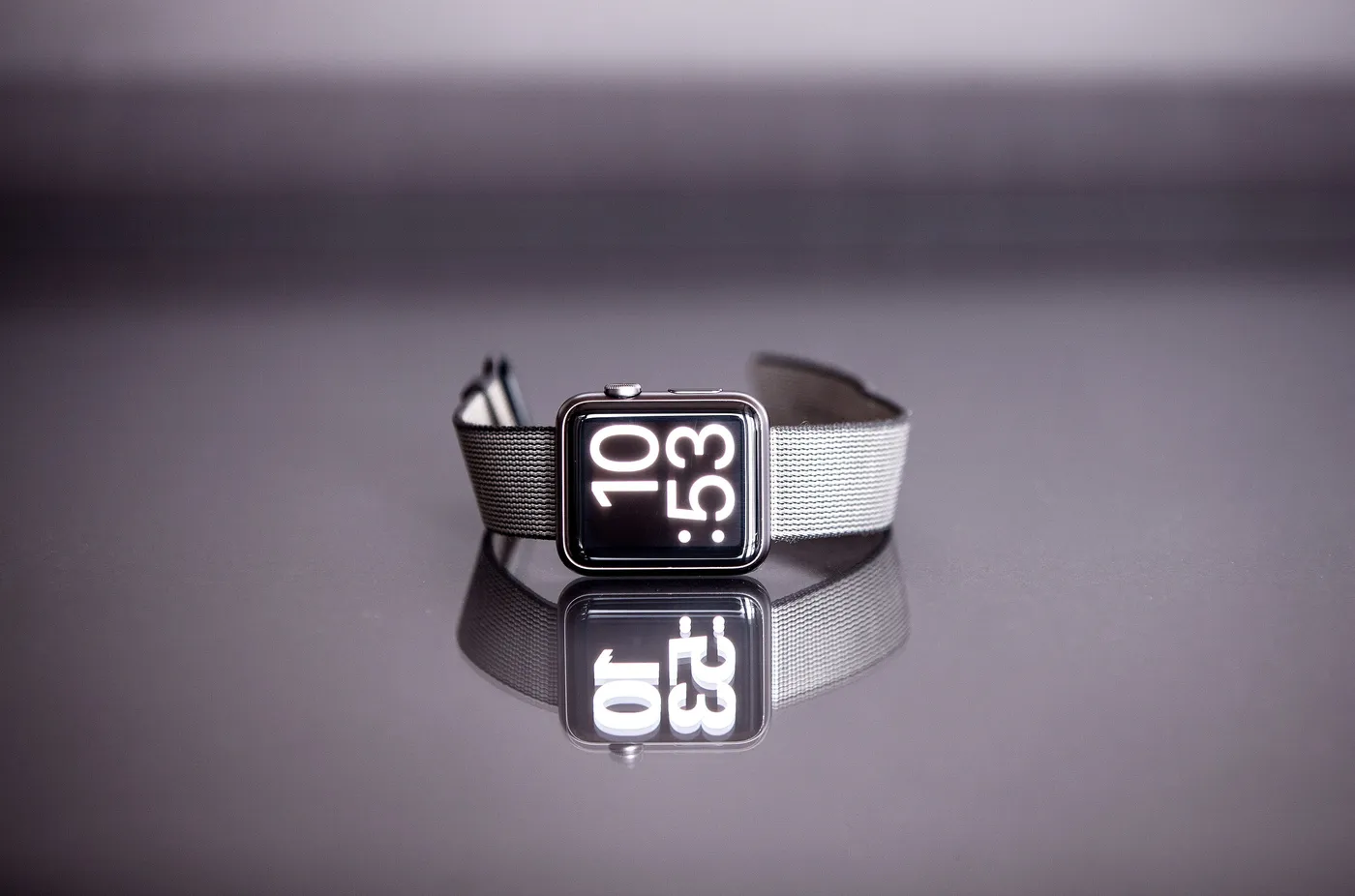
The watch is the microphone. The transcript is written on the iPhone or on a server, depending on the app. Source:

Wikimedia Commons (Jens Kreuter)
, CC0.
Four ways to transcribe an Apple Watch recording
| Voice Memos | Just Press Record | Whisper Memos | LoroNote | |
|---|---|---|---|---|
| Price | Free, built in | $6.99, one-time | Free to download, paid after trial | Free to download; first two minutes of a recording free |
| Records on the watch | Yes | Yes, “even when your iPhone is not around” | Yes, “standalone recording” | Yes, from the app or a complication |
| Where the transcript is written | On an iPhone 12 or later | On the iPhone, after transfer | Off the device, after upload | On your iPhone (13 or later), on the device |
| Languages | 10 | “Over 30” | “Over 50” | About 100 |
| Speaker labels | No | Not listed | Not listed | Yes |
| Best for | Quick notes to yourself | A simple recorder with a language picker | A summary emailed to you | Private recordings, more languages, speakers, subtitles |
Prices and quoted phrases are from each app’s US App Store listing on November 5, 2026. “Not listed” means the listing does not mention the feature — not that we tested for it.
Option 1: Voice Memos, the free built-in route
Voice Memos is already on your watch, and for a quick note to yourself in a supported language it is all you need.
- On the watch, open Voice Memos and tap the Record button. Tap Stop Recording when you are done.
- Let it sync. Apple’s guide says recordings on the watch “automatically sync to your iPhone, iPad, and Mac where you’re signed in with your Apple Account.”
- On the iPhone, open Voice Memos and tap Watch Recordings.
- Tap the recording, tap the ⋯ (More) button, and choose View Transcript — or Copy Transcript to paste the whole thing somewhere else.
The fine print matters more than the steps:
- iPhone 12 or later. That is Apple’s stated requirement for Voice Memos transcription.
- Ten languages. English (all variants), Spanish, Portuguese, Italian, French, German, Japanese, Korean, Simplified Chinese, and Traditional Chinese. Apple adds that the feature is “not available in all countries or regions.”
- No language picker. Transcription follows the phone’s language settings, so a Korean memo recorded with an English-language iPhone tends to come back empty or garbled, even though Korean is on the list.
- Plain text only. There are no speaker labels and no subtitle export.
- Apple does not document watch recordings separately. Its transcript instructions cover recordings in Voice Memos in general, and the Apple Watch guide stops at syncing. If a synced watch recording shows no View Transcript option, work through the checks in our Voice Memos transcript troubleshooting guide.
What about Live Rewind and Siri Recap?
If you have read about the Apple Watch Series 12 or Apple Watch Ultra 4, you may be expecting the watch to transcribe conversations by itself. That is not what Apple announced. Its support article on the watch’s Audio Intelligence features, published November 3, 2026, describes two things:
- Live Rewind “recalls what was just said in the last 15 seconds by showing a text snippet on your Apple Watch when you double-press the Digital Crown.” Unless you save it, the snippet disappears “approximately 30 seconds after the Apple Watch display dims.”
- Siri Recap “ambiently takes notes on your conversations throughout your day” and produces what Apple calls “a brief, high-level summary, not a detailed record or transcript.” Apple is blunt about the rest: “Audio is not recorded or stored.”
Neither has shipped yet. Apple says both “will be available in beta later this year with watchOS 27.3,” on an Apple Watch Series 12 or Ultra 4 paired with a supported iPhone — Apple’s list starts at the iPhone 16 — in English first, and not for users under 18. Apple adds that they “will not initially be available in the EU” and “are not available in China.”
They are built for a different moment: catching the name or the number you just missed. With no recording and no full text — by design — they cannot give you the transcript of a meeting, a lecture, or an interview. For that you still need a recording, which brings us back to the apps.
Options 2 and 3: Just Press Record and Whisper Memos
Just Press Record
Just Press Record is a recorder first, with transcription built in. It costs $6.99 once, and its listing says you can “record independently on Apple Watch and sync later” and “start recording with a single tap on the Complication.” Recordings then “automatically transfer to iPhone for transcription and iCloud syncing.”
Its real advantage over Voice Memos is one line in the listing: “Support for over 30 languages, independent of your device’s language setting.” If Voice Memos keeps failing because you record in a language your phone is not set to, that line is the fix.
What the listing does not mention is speaker labels, and it does not say whether transcription stays on the phone or goes through a server. If either matters to you, ask the developer before you buy.
Whisper Memos
Whisper Memos is built around what happens after the recording. Its listing describes an “Apple Watch app with standalone recording,” a complication that is “always one tap away,” transcription in “over 50 languages,” and an AI summary delivered “straight to your email.” It also connects to note and task apps through Zapier, which is the main reason to choose it.
The trade-off is in its own description of the watch workflow: the app “uploads your recording and transcribes it automatically.” The audio leaves your devices, and the text does not exist until the upload goes through — the listing calls this “offline recording — syncs when you’re back online.” For a grocery list, that is a non-issue. For a client conversation, decide first whether an upload is acceptable.
Option 4: LoroNote — record on the watch, transcribe on your iPhone
LoroNote treats the watch as the recorder and the iPhone as the transcriber. The App Store listing puts it in three sentences: “Record ideas, memos, or conversations directly from your wrist. Add complications to your watch face for instant access. Your recordings automatically sync to your iPhone for transcription when connected.”
In practice:
- Install LoroNote on your iPhone. The Watch app comes with it. If it does not appear on the watch, open the Watch app on the iPhone and install LoroNote from Available Apps.
- Add the complication. Touch and hold your watch face, tap Edit, swipe to the complications screen, tap a slot, and choose LoroNote.
- Tap the complication to start a recording. The phone can stay in your pocket. Stop when you are done.
- Let it sync. The recording moves to the iPhone when the two are connected and appears in LoroNote.
- Transcribe on the iPhone. The phone runs Whisper Large V3 Turbo on the device, detects the language automatically across about 100 languages, and labels who said what. Nothing is uploaded, so this step works in Airplane Mode.
- Use the text. Tap a line to replay that moment, export TXT or SRT subtitles, or have Apple Intelligence draft a summary and action items on supported devices.
What you need: an Apple Watch running watchOS 11.6 or later, and for transcription an iPhone 13 or later (or iPhone SE, 3rd generation) on iOS 18.6 or later.
What it does not do:
- No transcript on the watch. The Watch app is a recorder. You read, search, and edit on the iPhone.
- Not live. The text appears after the recording has synced and the phone has transcribed it, not while you speak.
- No translation. The transcript is in the language that was spoken.
Which one should you use?
- You want free, and you speak one of Apple’s ten languages: Voice Memos. There is nothing to install.
- You want a simple recorder with a language picker, for a one-time price: Just Press Record.
- You want a summary in your inbox and the upload does not bother you: Whisper Memos.
- The recording should stay on your own devices, or you need speaker labels, SRT subtitles, or a language outside Apple’s ten: LoroNote.
- You only want to catch what someone said ten seconds ago: wait for Live Rewind, and note that it needs the newest watch.
For a wider comparison that is not limited to the watch, see our guide to the best speech to text apps for iPhone and iPad.
Getting a cleaner transcript from a wrist recording
A watch is a convenient microphone, not an ideal one. Three habits make a visible difference in the text:
- Bring the watch to the voice. Distance is the biggest accuracy lever there is: the same speech model that scores 2–3% word error rate on close-miked audio scores around 16% on distant-microphone meeting recordings. For a memo, raise your wrist instead of talking across the room at it. The numbers are in our guide to improving transcription accuracy.
- Keep fabric and hands quiet. A cuff brushing the microphone, or a wrist that gestures while you talk, ends up in the recording as noise the model has to guess through.
- Use the phone for the long ones. For an hour-long meeting or lecture, set the iPhone on the table instead. It has the bigger battery, and it can sit closer to the people speaking than your wrist can. Our guide to recording meetings without a bot covers that setup.
Whichever app you use, tell people before you record them. The rules on recording conversations differ from place to place.
Frequently Asked Questions
Can an Apple Watch transcribe voice memos?
Not on the watch itself. Voice Memos on the watch records and syncs; the transcript is an iPhone feature, available on iPhone 12 or later in ten languages. Third-party apps work the same way in principle: the watch records, and the iPhone or a server produces the text.
Can I record on my Apple Watch without my iPhone nearby?
Recording, usually yes; transcribing, no. Just Press Record’s listing says you can record “even when your iPhone is not around,” and Whisper Memos lists “standalone recording.” Apple says Voice Memos recordings made on the watch sync automatically, and LoroNote’s listing says recordings sync to the iPhone “when connected.” Either way, the transcript waits until the audio has reached the phone or the server.
Is Live Rewind the same as transcription?
No. Live Rewind shows a text snippet of the last 15 seconds when you double-press the Digital Crown, and the snippet disappears shortly afterwards unless you save it. Apple says the related Siri Recap feature produces “a brief, high-level summary, not a detailed record or transcript,” and that no audio is recorded. Both are due in beta with watchOS 27.3 on Apple Watch Series 12 and Apple Watch Ultra 4.
Does the transcript show up on the Apple Watch?
With LoroNote, no: the Watch app is a recorder, and you read the transcript on the iPhone. Apple’s Apple Watch guide does not describe a transcript view in Voice Memos on the watch either. Whisper Memos says its Watch app “doesn’t display live captions or let you edit the finished transcript.”
Which languages can I transcribe from an Apple Watch recording?
It depends on where the transcript is made, not on the watch. Voice Memos covers ten languages, Just Press Record lists “over 30,” Whisper Memos lists “over 50,” and LoroNote covers about 100 — the full roster is on the languages page.
Which Apple Watch do I need?
Voice Memos is built into Apple Watch. LoroNote’s Watch app needs watchOS 11.6 or later, plus an iPhone 13 or later for the transcription itself. Live Rewind and Siri Recap need an Apple Watch Series 12 or Apple Watch Ultra 4 paired with a supported iPhone; Apple’s list starts at the iPhone 16.
Conclusion
An Apple Watch is a recorder you are always wearing, and that is its whole value here: it catches the thought, the hallway conversation, or the instruction you would otherwise lose. The transcript comes from wherever the recording goes next. Voice Memos sends it to your iPhone for free, in ten languages and as plain text. Just Press Record adds a language picker, and Whisper Memos adds a summary in exchange for an upload. LoroNote keeps the recording on your own devices and adds about 100 languages, speaker labels, and subtitle export. Apple’s Live Rewind and Siri Recap, when they arrive, will help you recall a moment — not replace a transcript.
Official Resources
- Apple: Record and play voice memos on Apple Watch
- Apple: View a Voice Memos transcription on iPhone
- Apple: About Audio Intelligence features on Apple Watch Series 12 and Apple Watch Ultra 4
- App Store: Just Press Record
- App Store: Whisper Memos
- Whisper Memos: Apple Watch transcription
- LoroNote: Voice memo to text — where the built-in transcript stops
- LoroNote: Supported languages
Turn your voice into text — offline
LoroNote transcribes meetings, lectures, and interviews right on your iPhone — private, accurate, and unlimited.
Download on the App Store