

Table of contents
- What speaker diarization actually is
- The quick answer
- Before identifying speakers
- 1. Choose automatic detection or a speaker count
- 2. Review the color-coded transcript
- 3. Replace Speaker 1 with real names
- 4. Correct the speaker assigned to a segment
- Tips for more reliable speaker separation
- What speaker diarization can—and cannot—do
- Frequently asked questions
A transcript tells you what was said. In a meeting, interview, or group discussion, that is only half the job—you also need to know who said it.
Speaker diarization solves that problem by dividing a recording into segments and assigning each segment to a speaker. LoroNote performs this analysis directly on your iPhone or iPad, then presents the transcript with color-coded speaker labels and timestamps.
This guide walks through the complete workflow: detecting speakers, reviewing the result, replacing generic labels with names, and correcting any segment assigned to the wrong person.
What speaker diarization actually is
Speaker diarization is the process of splitting an audio recording by voice — determining who spoke when. It answers a different question than speech recognition: transcription turns sound into words, while diarization groups those words by the person who said them. A “who said what” transcript is the two combined.
Under the hood, a diarization system extracts a compact voiceprint from short slices of audio and clusters slices that sound like the same person. It never learns anyone’s identity — it can tell that two segments share a voice, not whose voice it is, which is why results start as Speaker 1 and Speaker 2 until you assign names.
Diarization has traditionally been a cloud feature because it is computationally heavy. Running it on the phone, as LoroNote does, means a confidential meeting gets speaker labels without the recording ever leaving the device — the same privacy argument as offline transcription itself, applied to the harder half of the problem.
The quick answer
Open a completed recording, switch to Show Segments, and use the speaker button to identify participants. You can let LoroNote detect the number automatically or choose a known count from 2 to 8.
| What you want to do | Where to do it |
|---|---|
| Detect speakers automatically | Speaker menu → Auto Detect |
| Set a known number of participants | Speaker menu → choose 2–8 Speakers |
| Rename, add, or merge speaker labels | Speakers identified → Edit |
| Fix one segment | Use the edit control beside that transcript segment |
| Move several segments to another person | Edit → select segments → Change Speaker |
Before identifying speakers
You can use speaker diarization with a recording made in LoroNote or with an imported audio file. For the cleanest result:
- Place the iPhone or iPad where every participant can be heard clearly.
- Avoid covering the microphone or putting the device in a pocket.
- Ask participants not to speak over one another when possible.
- If you already know the exact number of speakers, use that number instead of automatic detection.
Speaker diarization works best when each person has enough uninterrupted speech for the model to learn the differences between their voices.
1. Choose automatic detection or a speaker count

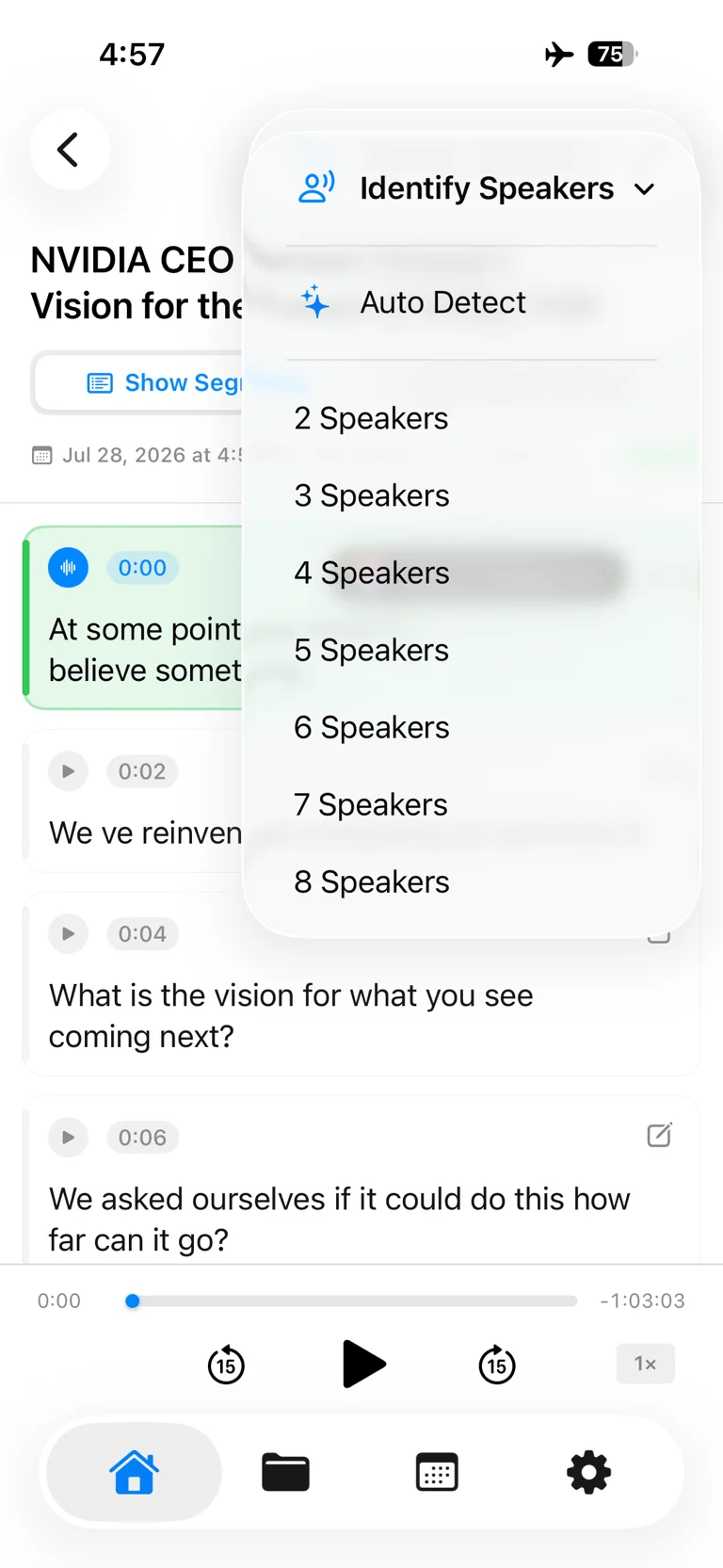
Open the recording and tap the speaker icon in the top toolbar. The Identify Speakers menu offers two approaches:
- Auto Detect is the easiest option when you do not know how many people are in the recording.
- 2–8 Speakers tells LoroNote the exact number to look for. Use this for a scheduled interview, panel, or meeting with a known attendance count.
Choosing a count can reduce unnecessary labels when background voices or short interruptions might otherwise be mistaken for another participant.
2. Review the color-coded transcript
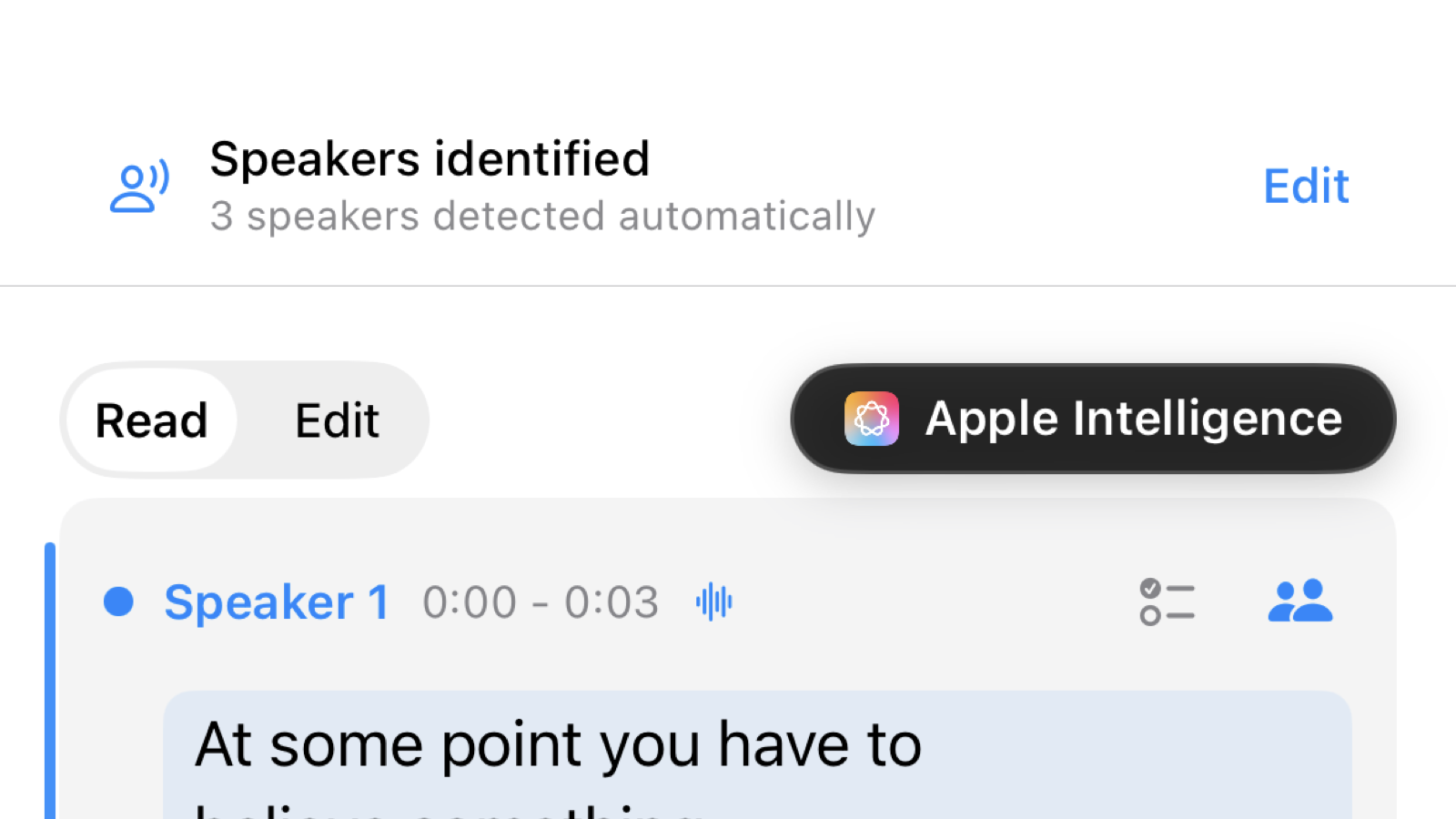
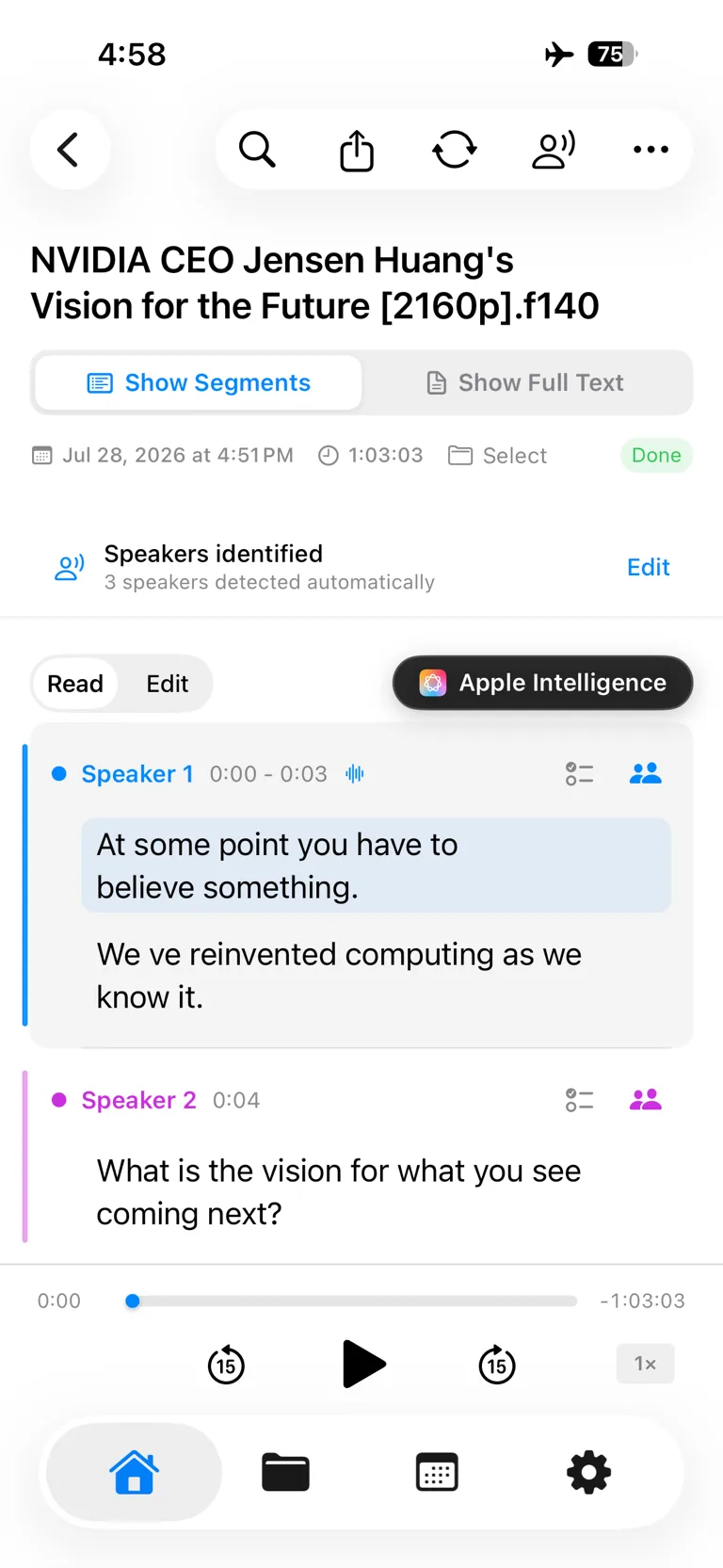
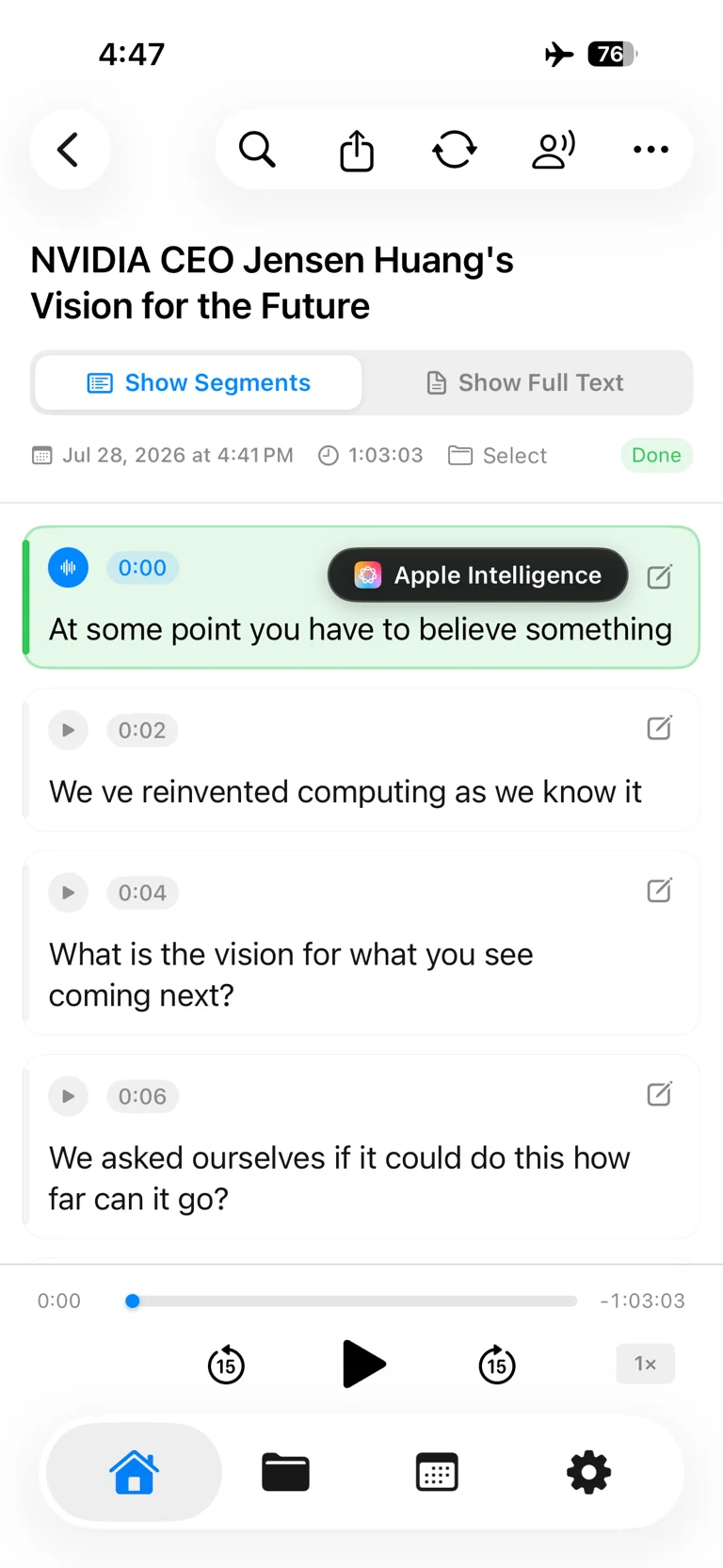
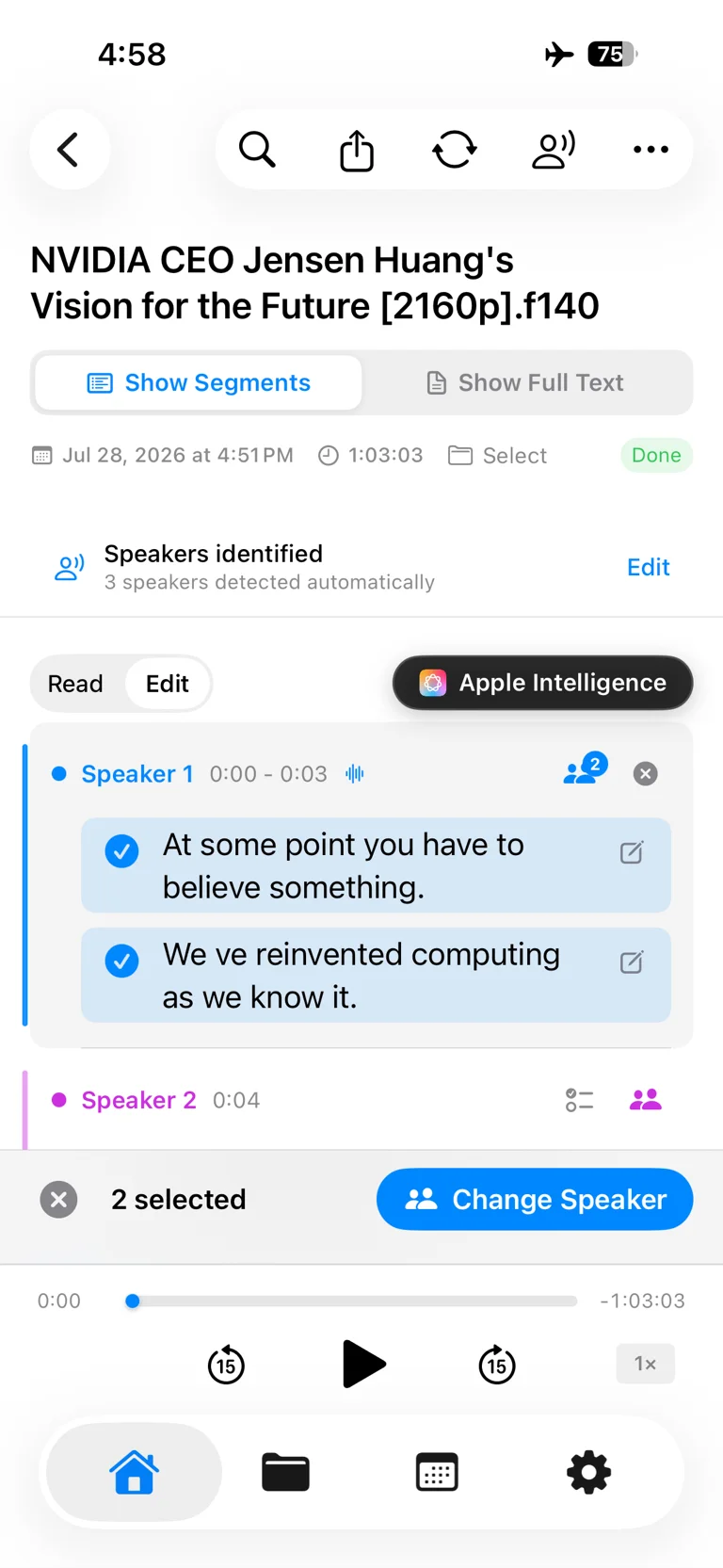
After analysis, the Speakers identified summary shows how many voices were found. In Show Segments, each speaker receives a color and every section includes its speaker label and timestamp.
Tap a segment to jump to that exact moment in the audio. This is the fastest way to verify a boundary: listen to the surrounding few seconds and confirm that the label changes when the voice changes.
3. Replace Speaker 1 with real names
Generic labels are useful during detection, but names make a transcript much easier to read and share.
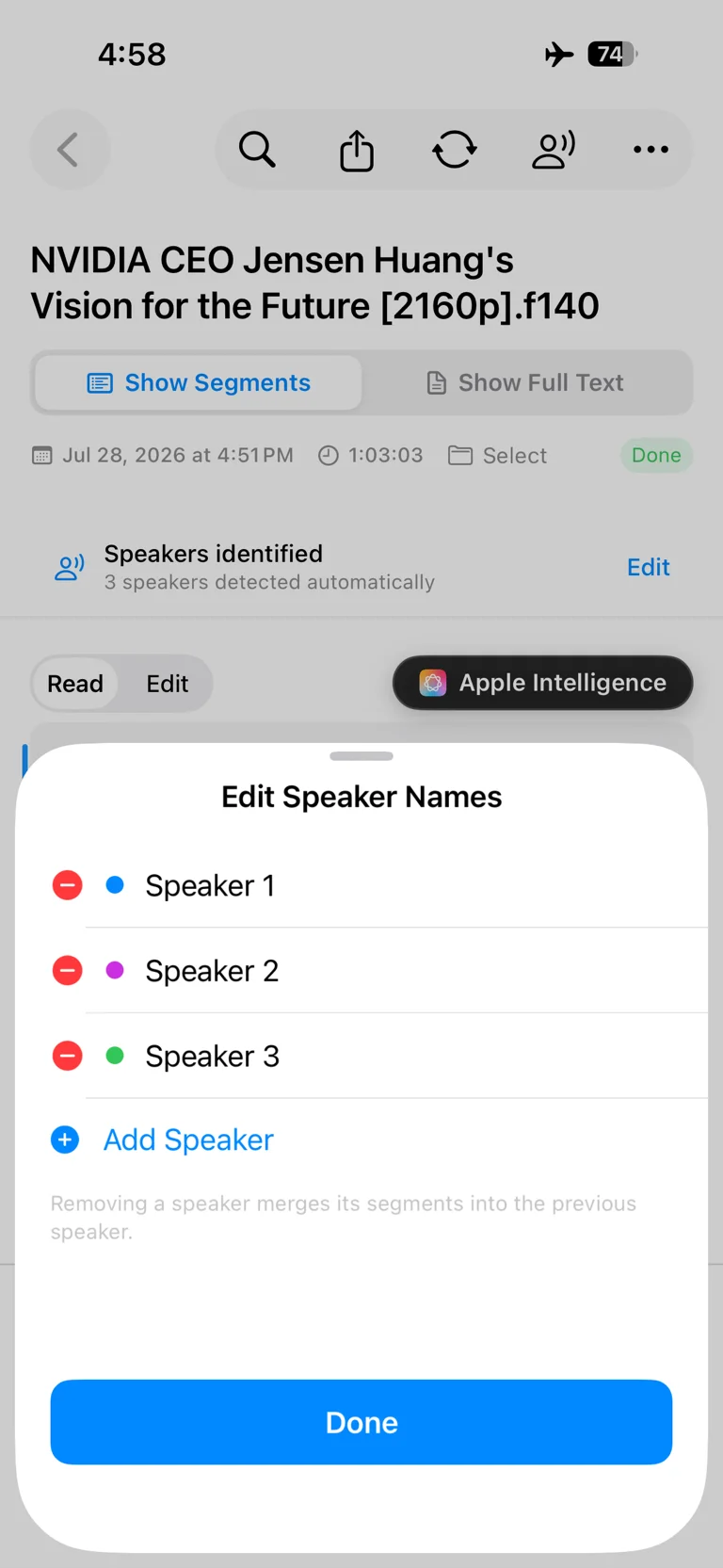
Tap Edit beside Speakers identified to open the speaker list. From here you can:
- Tap a speaker name and replace it with the participant’s real name or role.
- Add a missing participant with Add Speaker.
- Remove an unnecessary speaker. Removing one merges its segments into the previous speaker, so review the affected sections afterward.
- Tap Done to save the list.
For recurring meetings, descriptive labels such as “Interviewer,” “Client,” or “Presenter” can be clearer than names alone.
4. Correct the speaker assigned to a segment
Even a strong diarization result may need a quick correction around interruptions, laughter, or overlapping speech.
For a single mistake, use the edit control beside that transcript segment and assign the correct speaker. Play the audio from its timestamp if you need to confirm the voice first.
To correct several segments at once:
- Switch from Read to Edit.
- Select every segment that belongs to the same person.
- Tap Change Speaker.
- Choose the correct speaker from the list.
Bulk correction is especially useful when one participant was split into two labels throughout a long recording.
Tips for more reliable speaker separation
- Prioritize clean audio. Distance and room noise affect speaker separation as well as transcription accuracy.
- Use the known count when possible. A fixed count gives the model a useful constraint.
- Check transitions first. Mistakes are most likely where one person interrupts another or two voices overlap.
- Listen from the timestamp. A few seconds of audio is usually enough to confirm the correct speaker.
- Name speakers before sharing. “Alex” and “Product Lead” are more useful to readers than “Speaker 1.”
- Use bulk editing for repeated errors. Do not correct the same split speaker one segment at a time.
What speaker diarization can—and cannot—do
LoroNote can distinguish different voices and group their speech, but it does not automatically know anyone’s real-world identity. Detection begins with neutral labels such as Speaker 1 and Speaker 2; you decide what names to assign.
Overlapping speech remains the hardest case for any diarization system. If two people talk at exactly the same time, the transcript may need a small manual correction. That is why timestamps, direct audio playback, and both single and bulk reassignment are part of the workflow.
As with transcription, speaker analysis is performed on-device. Your recording does not need to be uploaded to a transcription server, and the feature remains useful for private meetings and interviews.
Frequently asked questions
Can LoroNote identify speakers in an imported audio file?
Yes. Import the file, open its transcript, and run speaker identification in the same way as a recording made in LoroNote.
Should I use Auto Detect or enter the number myself?
Use a fixed number when you know exactly how many people spoke. Use Auto Detect when the count is uncertain or changes during the recording.
How many speakers can I choose manually?
The speaker menu provides fixed choices from 2 through 8, plus automatic detection.
Can I rename speakers after detection?
Yes. Open the speaker list with Edit and replace the generic labels with names or roles at any time.
What if several segments have the wrong speaker?
Switch to Edit, select all affected segments, and use Change Speaker to reassign them together.
Does speaker identification require the internet?
No. LoroNote processes the audio on your device, just like its offline transcription workflow.
Can the iPhone label speakers for free?
Not with the built-in tools. Apple’s Voice Memos transcribes on supported models, but it produces a plain transcript with no speaker labels. For a labeled multi-person transcript you need an app that performs diarization — on-device options are compared in our offline speech to text apps roundup.
Where does speaker diarization matter most?
Anywhere more than two people talk and the record has to be attributable: meeting minutes with action items assigned to the right person, interviews where quotes must be attributed, panels, and user research sessions. Our AI meeting minutes guide shows how speaker labels feed directly into decisions, owners, and deadlines.
Turn your voice into text — offline
LoroNote transcribes meetings, lectures, and interviews right on your iPhone — private, accurate, and unlimited.
Download on the App Store